MyAV help
A little setup.
Everything in reach.
Connect your equipment, put the right controls together and make MyAV yours. Start below or search for the thing you need.
Android is available now. MyAV for iPhone and iPad is coming soon. The Android steps below describe the current app; iOS screens may differ.
Try the simulatorNo answers match those filters. Try a shorter search or choose All topics.
Start here
Getting connected
How do I connect MyAV for the first time?
- Join your home network. Connect your phone or tablet to Wi-Fi and switch the equipment fully on. Equipment connected to your router by Ethernet is fine.
- Allow network access. Accept the permissions MyAV requests for finding and controlling equipment on your network.
- Let MyAV look for devices. If you are in the discovery guide, choose Search again.
- Complete pairing. Watch the television or equipment for an approval request or PIN and follow MyAV’s instructions.
Your equipment and phone need to be able to reach each other on the same local network. They do not have to use the same Wi-Fi band or connection type.
Which permissions does MyAV need?
MyAV needs access to your local network to discover and control network equipment. On Android, review any permissions you denied in the phone’s settings for MyAV. Allow Wi-Fi or local-network access if your Android version lists it; the names and prompts vary.
You do not need to look for a permission your phone does not offer. A location or country prompt is not the same thing as local-network access.
For the upcoming iPhone and iPad app, allow the Local Network prompt. If access was denied, Apple’s path is Settings → Privacy & Security → Local Network, then enable MyAV when it appears. Apple’s local-network permission guide.
No devices found: what should I check?
- Start with the equipment awake. Turn it on with its original remote and check that its network connection works.
- Check the network. Avoid a guest Wi-Fi network or a router setting that isolates wireless clients. A second router can create a separate network; follow its manufacturer’s instructions for access-point (AP) mode where appropriate.
- Check permissions and VPNs. Allow MyAV’s network access. If you use a VPN, check whether it blocks access to devices at home.
- Enable remote control on the equipment. Look for the manufacturer’s Network, IP Control, Remote Control or Mobile App control setting. The wording depends on the model.
- Try again. Return to MyAV and choose Search again in the discovery guide.
Still missing? The guide’s Add manually option can help with a supported model when you know its local IP address. Manual addition does not add support for an incompatible model.
If the device only accepts infrared commands, see infrared equipment.
Using the controls
How do I select an input or source?
Open the input chooser from the input/source control. Tap the input’s main row to select it. With an AV receiver, this sends the receiver’s input command; a linked device can then provide the controls for that source.
The names and inputs come from your equipment and saved assignments. Match them to the physical connections: for example, a Blu-ray player connected to BD/DVD and a streamer connected to your chosen HDMI input. Your setup may use different names.
If supported, the chooser also offers tools to rename, reorder or reassign inputs. Some customisation features require Pro.
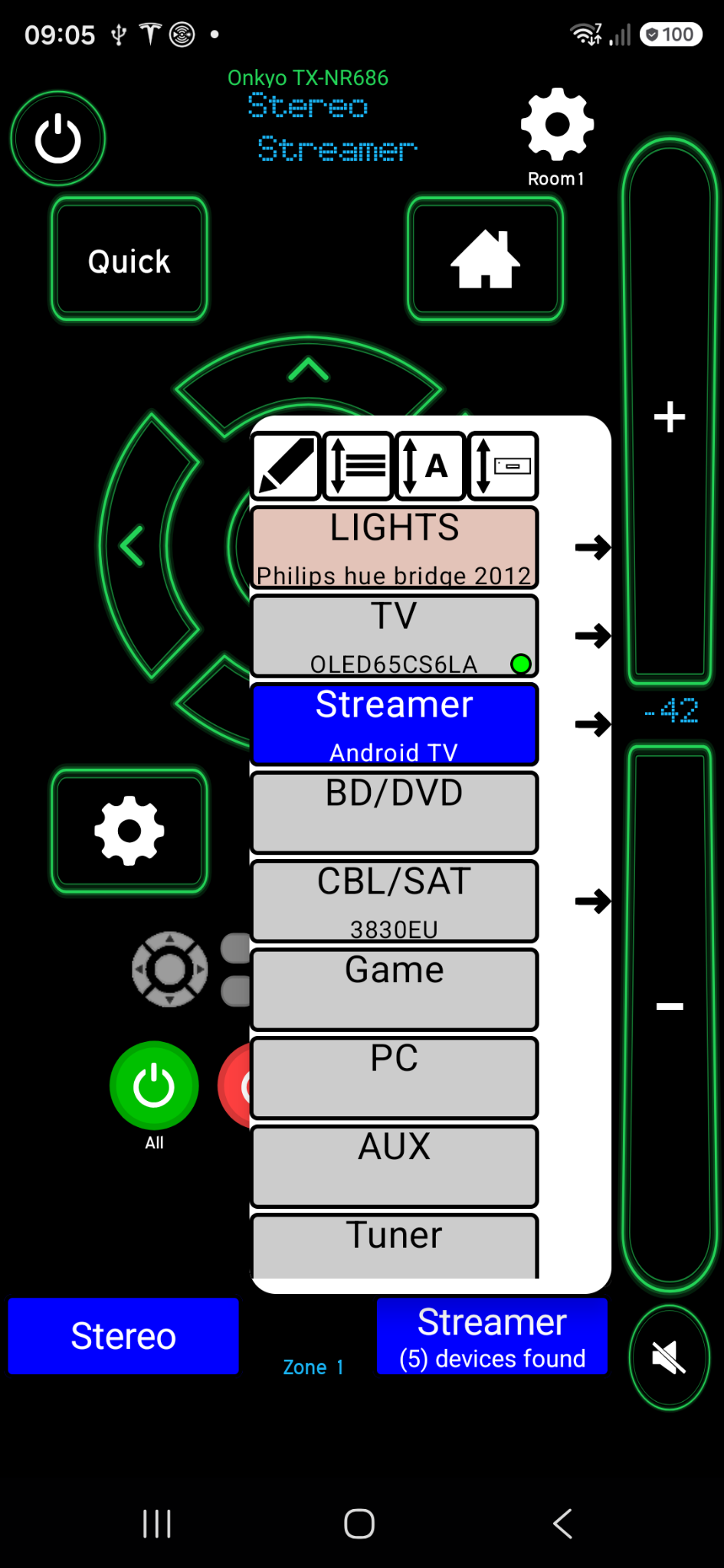
What does the arrow beside an input do?
The Jump To arrow opens the linked device’s remote controls. It does not send an input or power command.
Use it when you want to control a device while keeping the current receiver input. To change what you are watching, tap the input’s main row instead.
Why does each device have different controls?
MyAV builds the remote around the selected device’s supported controls. A receiver, TV, disc player and streamer can expose different buttons, settings and feedback.
A missing app list, volume reading or programme title does not necessarily mean the connection has failed. Some equipment accepts commands without providing that information back to MyAV. Check the equipment’s response to a supported button.
Rooms and devices
How do I switch room profiles?
Open Settings and choose the room from the Profile selector. New room profiles use names such as Room1 and Room2; your saved names may be different.
Choose the room that contains the equipment you want to control. Extra room profiles may require Pro. Room profiles organise equipment; they are separate from an AV receiver’s playback zones.
How do I hide a device I do not use?
- Open that device’s controls.
- Go to Settings → Advanced Settings → Device.
- Choose Set unused.
This moves the device to the reserved Unused profile. It is useful for discovered equipment you do not want in the current room.
Unused is a holding area, rather than another room for everyday control. If you chose it accidentally, switch back to your normal room using the Profile selector.
Picture and sound
How do I make the TV switch to the right HDMI input?
- Check which HDMI socket on the TV receives the picture for that source.
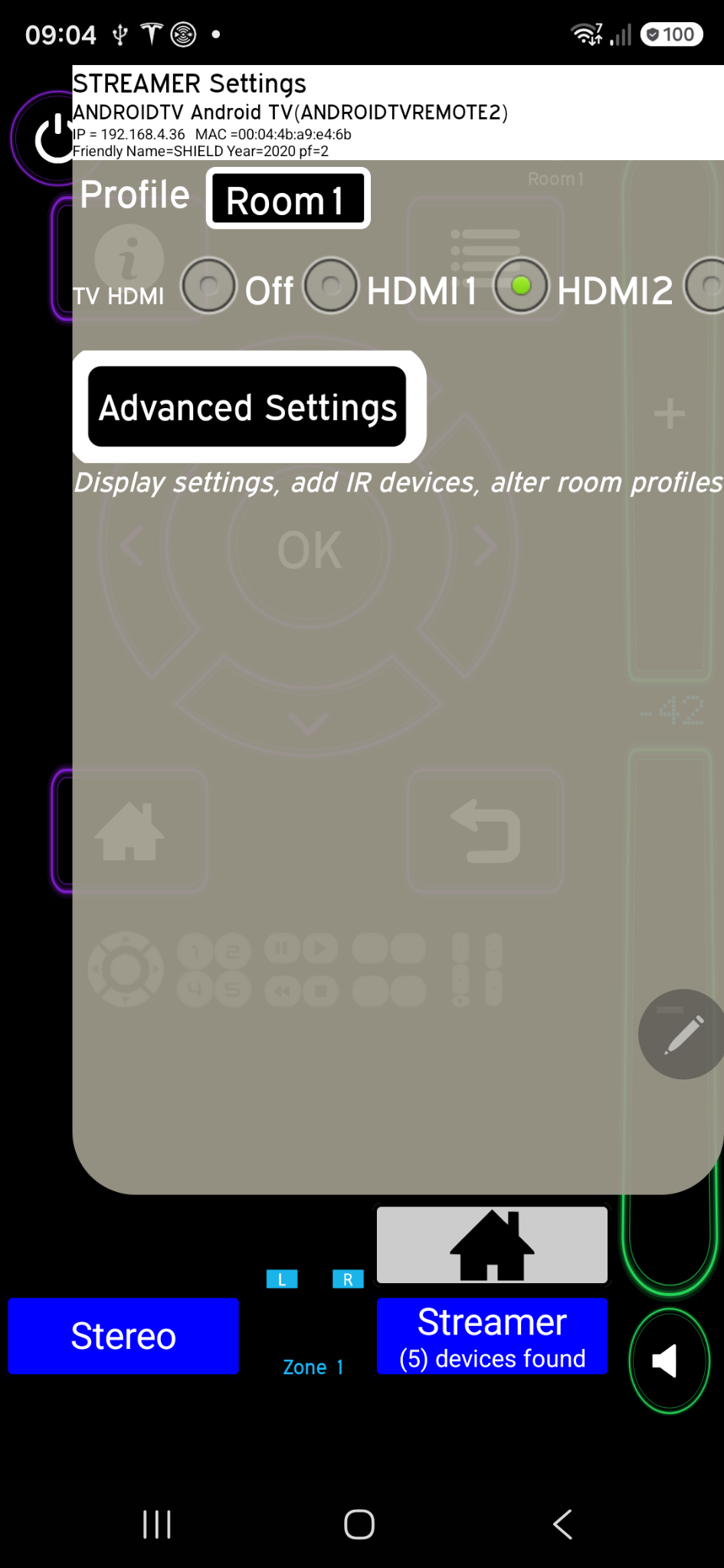
- Open the source’s Settings. Where available, choose the matching input in TV HDMI.
- If the source passes through an AV receiver, choose the TV HDMI socket connected to the receiver’s output. Sources through that receiver will usually use the same TV socket.
Choosing a non-Off option also sends that TV input command immediately, so you can check the result. Choose Off to leave the TV input alone when selecting that source.
The choices depend on the detected TV and device profile. There is no universal HDMI number: use your own wiring.
What is the TV’s Default TV setting?
In the TV’s normal Settings, Default TV can choose the TV tuner/input to use when selecting TV. The available choices depend on the TV, such as its digital, cable or satellite tuner.
A non-Off selection is sent immediately. Off leaves the TV’s current input unchanged. This is separate from a source’s TV HDMI association.
Am I changing the TV volume or receiver volume?
When an AV receiver is in use, the receiver volume controls adjust that receiver. A separate TV volume pad, when available, adjusts the TV’s speakers. Each has its own mute control.
Use the receiver controls when sound comes through the receiver and speakers; use TV volume for the television’s own audio. If you use receiver zones, check the selected zone before changing its level.
Mute changes the mute icon while keeping the numeric volume reading visible. Readings and volume scales depend on the equipment’s feedback; an unavailable reading may appear as dashes.
Channels and apps
How do I choose which channels or apps appear?
Open the selected device’s Settings and use Channels. Depending on the device, choices include All, Favourites, TV, Radio, HD, Apps and None. Some choices use an icon; None may appear as an X.
The filter belongs to that device. A TV’s radio filter does not change another device’s channel list. Apps is available only where the device supports an app list; None hides the list.
If the list is empty, try All. Favourites needs saved favourites, and Radio or HD can only show matching entries in that device’s channel list.
What happens when I tap a channel or app?
A channel logo sends a channel selection to the device whose controls you are using. An app entry launches that app on the selected supported device.
Opening another device’s controls with Jump To does not reroute your receiver. If the TV is showing a different source, select the matching receiver/TV input as well.
Channel numbers, app availability and programme feedback vary by equipment and region. MyAV is a remote control; the website simulator’s programme and playback states are illustrative.
Pairing and compatibility
My equipment is found, but it asks me to pair. What next?
Keep the equipment switched on and follow the instructions MyAV displays for that device. Some models show a PIN on the TV, some ask you to approve the connection, and others require different information.
Use the requested information for your own equipment. There is no single pairing code or sequence that works for every brand. If you do not see a prompt, check the television screen and the equipment’s remote-control permissions.
Why can I control a device when it is on, but not wake it?
Some equipment stops listening for network commands in standby. Check its manufacturer’s network-standby, remote-start or power-saving options. These settings and wake support vary by model.
MyAV shows a Network standby option only for profiles that provide it. Start with the equipment fully on when troubleshooting discovery or pairing.
Does a supported brand mean every model will work?
Check the exact model or supported model family. Devices from the same brand can use different control systems, and available functions can depend on the model year, firmware and enabled network settings.
The website simulator is a prepared example of several devices working together. Its controls do not establish support for every model from those brands.
iOS and infrared
Is MyAV available for iPhone and iPad?
MyAV for iPhone and iPad is coming soon. Android is available now. Check the home page for launch information.
Network-controlled equipment still needs to share your home network, and the iOS app will need Local Network permission. Android-specific menu screenshots on this page are labelled; the iOS layout may differ.
What do I need for infrared-only equipment?
For iPhone or iPad, infrared control requires a compatible third-party IR blaster. The phone or tablet does not transmit the equipment’s infrared commands directly.
On Android, a compatible built-in IR transmitter can be used where supported. Many Android phones do not have one, so a compatible network IR blaster may be needed there too.
The blaster must support your setup and be positioned so its infrared signal can reach the equipment. Network-controlled equipment does not need an IR blaster just because you are using MyAV.
Check blaster and device compatibility before buying hardware. Ask about your setup if you are unsure.